Instagram doesn't provide a direct download feature. So, what should you do when you want to download images from Instagram? Don't worry! Below, we share 3 simple and free methods that can help you easily download Instagram images on PC or mobile.
🔥 Hot: 5 Unrestricted AI Image Generators in 2026 [Free]
Reading Guide
🔥 Best Instagram Image Enhancer and Generator
If your downloaded Instagram images are too blurry, or if you want to generate more eye-catching images to boost your views, don't miss out on AVCLabs PhotoPro AI. This all-in-one tool combines several powerful AI models to help you enhance image quality, restore old photos, colorize black-and-white images, remove unwanted objects, and even replace objects in videos using text prompts.
1. How to Download Instagram Images on Mobile
Most people use their phones to browse Instagram, so the first part let's learn how to download image from Instagram on mobile.
To download Instagram photos, we recommend using a free Instagram downloader for mobile. Based on our tests, most tools are not free and only support video downloads. Few tools offer the option to download images.
Currently, we found that Media Saver (also known as InSaver) can download Instagram images for free on Android. It's ad-supported, meaning you don't have to pay, but you will need to watch ads before using the download function. In addition to images, it can also download videos and supports downloads from other platforms like Facebook, Twitter, TikTok, Threads, and Pinterest. While there may be a download limit based on user feedback, we didn't find any explicit restrictions. If you download a large number of images at once (e.g., hundreds), you might trigger the app's anti-abuse mechanism and need to wait before using it again.
For iPhone, InSaver is a paid app. The ads are more frequent compared to the Android version, and it lacks a true download feature—images must be shared to other apps for saving. The paid version costs $2.99 monthly or $9.99 for a yearly subscription.
How to Download Image from Instagram on Android
- Go to Google Play Store and download Media Saver. After installation, open the app.
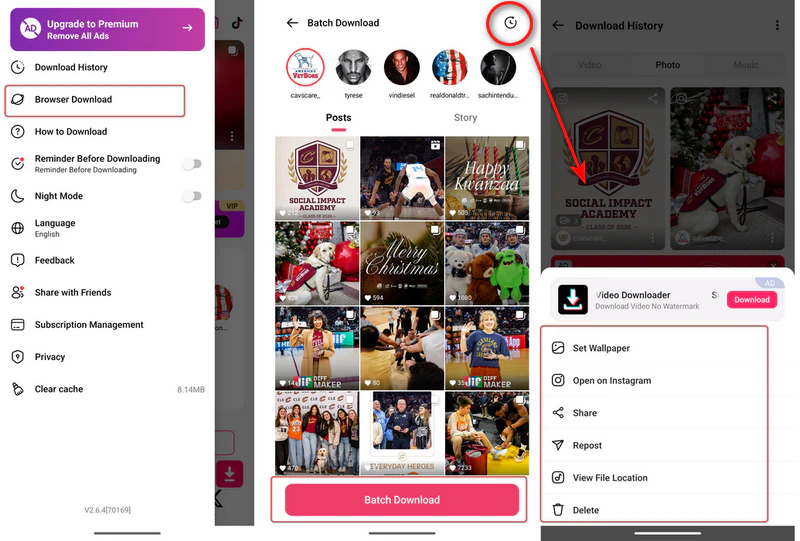
- Tap the menu and select "Browser Download". Log into your Instagram account.
- After logging in, you'll see a red download button in the top left corner of every Instagram photo or video (Or a Batch Download button on the bottom). Tap the download button to enter the "Select Items" section.
- Choose the image you want to download, then click "Download". The downloaded images will be automatically imported into your phone's gallery.
- Tap the clock icon in the top left to see all your downloaded images, videos, and music in the "Download History". Tap the three dots in the bottom right of any image to see options like "Set Wallpaper", "Share", "Repost", "View File Location", and "Delete".
2. How to Download Image from Instagram with Browser Extension
If you're used to browsing Instagram on your computer, using a browser extension to download is the fastest—no need to copy links; just click and save. We recommend Turbo Downloader for Instagram, which supports batch downloads. If you use Firefox or Edge, you can use Downloader for Instagram, both are completely free.
- Open your Chrome browser and go to the "Chrome Web Store".
- Search for Turbo Downloader for Instagram, find the corresponding extension, and click "Add to Chrome".
- Once installed, open the Instagram website and log into your account.
- Then hover over any image or video you want to download, and you'll see a small "Download" icon appear in the center of the image.
- Click this download icon, and the photo will be saved directly to your computer's default download folder. If you want to batch download, click the "Download All" button below your account info. It will download a ZIP file for you.
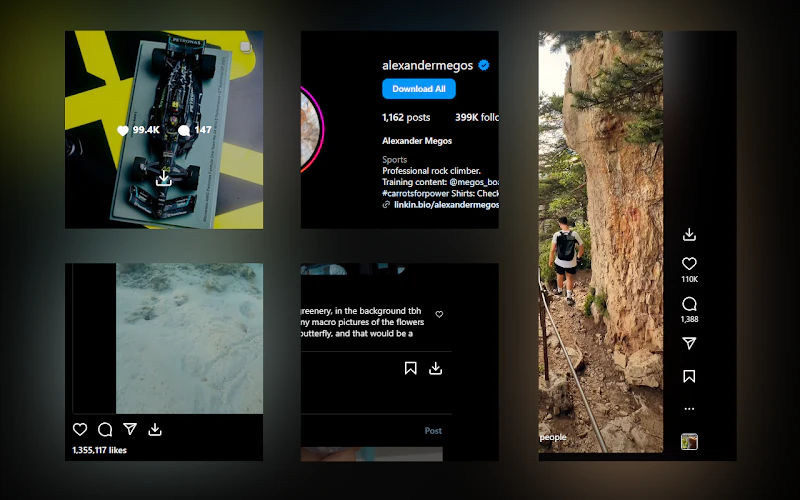
Bonus: This extension not only allows you to download photos but also Instagram Reels and Stories (only from public accounts). It doesn't ask for your Instagram password and doesn't collect personal information, so it's very safe to use.
3. How to Download Image from Instagram Online
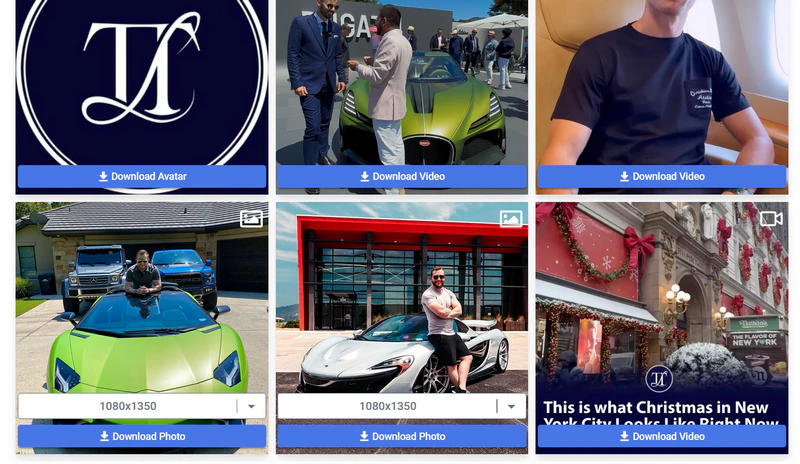
If you don't want to install apps or extensions on your phone or computer, online Instagram photo downloaders are the best option. There are many free online Instagram photo downloaders available. The vast majority are free and don't require you to log in. You just need a photo link or an account URL to start downloading, with options for quality selection. You can use them on mobile, computer, or tablet.
- Copy the Instagram photo or account link.
- Open your browser and choose a reliable free Instagram photo downloader. Try tools like Snapinsta, Toolzu, or FastDl. Among these, Snapinsta supports downloading content from private accounts and offers quality selection.
- Paste the copied link into the website's search box and click the "Download" button.
- After 2-3 seconds, the website will process the link. Then click the download button below the image you want to save.
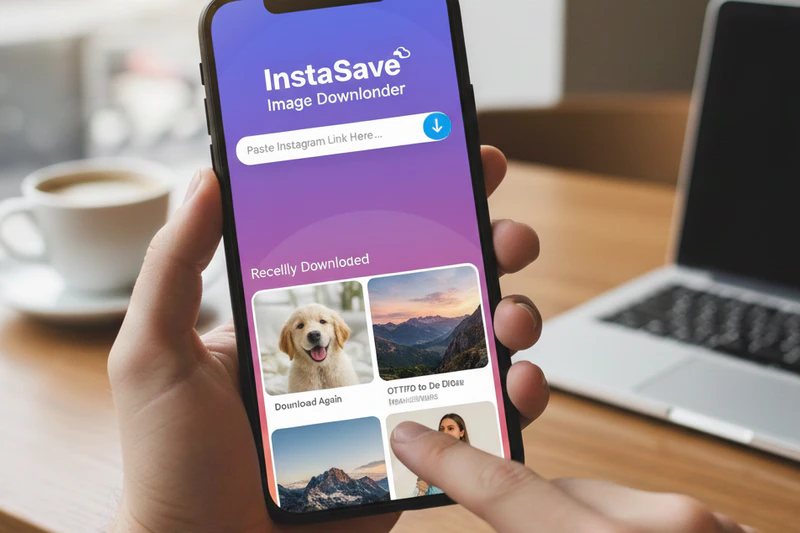
Here are 11 reliable Instagram image downloaders for 2026, including online tools, browser extensions, and desktop software. Learn more>>
Important Warning: Avoid online tools that ask you to "log in to Instagram to download"! These are likely phishing sites attempting to steal your account information.
4. Downloaded Instagram Image Quality Fixer - AVCLabs PhotoPro AI
The images downloaded from Instagram may be blurry, noisy, and of low resolution due to factors such as compression by the original uploader or limitations in device resolution. To improve their quality, AVCLabs PhotoPro AI is a great option. It is specifically designed to fix all common image quality issues in downloaded photos. With this tool, you can automatically enhance low-resolution Instagram images (e.g., 480P, 720P) to 1080P, 4K, or even 8K resolution, while keeping the details sharp even when enlarged.
In addition to improving image quality, AVCLabs PhotoPro AI can identify and remove compression noise, dull dark areas, and other common issues in Instagram images. It also enhances color saturation and brightness, bringing your photos to life with more vibrant, true-to-life tones.
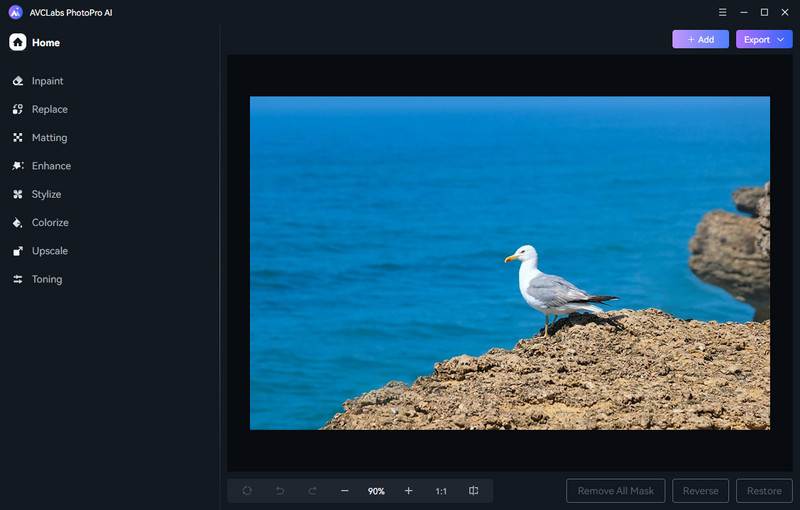
How to Enhance Blurry Instagram Images with AVCLabs PhotoPro AI
No experience needed—don't worry if you're not an expert in photo editing. Using this tool to enhance blurry instagram images is a breeze: Open the software → Drag and drop your Instagram image → Select the "Enhance" model and click "Apply." That's it!
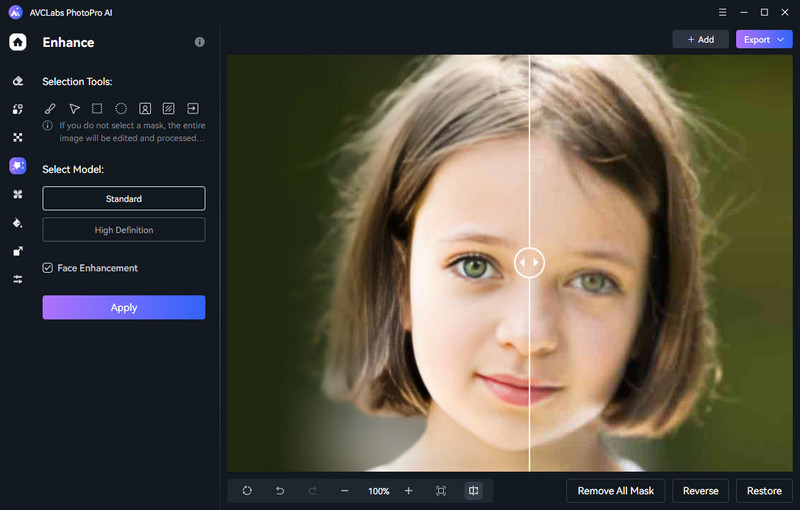
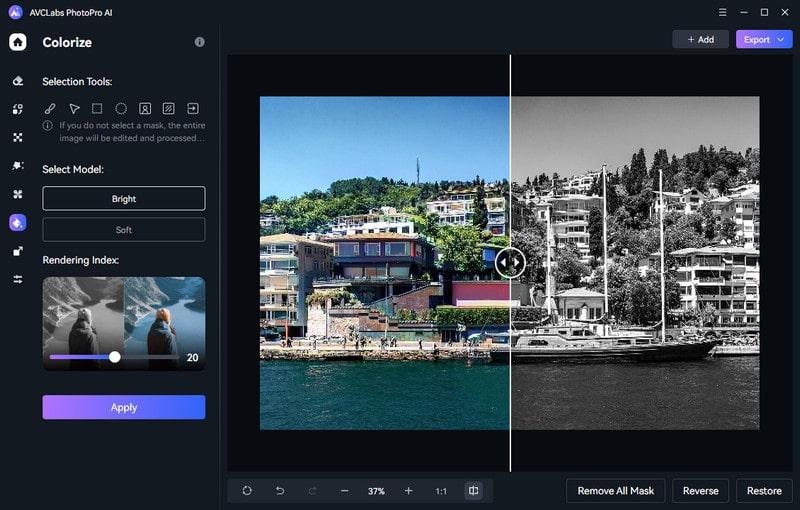
AVCLabs PhotoPro AI isn't just for regular Instagram photos. It can also restore old images (like vintage Instagram content), colorize black-and-white photos, and refine portrait details (e.g., sharpening facial features in influencer photos).
FAQs about Instagram Image Downloads
How do I download my own Instagram photos?
Yes, Instagram has a built-in setting that lets you auto-save a copy of every photo you post to your phone's gallery.
- Open the Instagram app and tap your profile icon (bottom right corner).
- Hit the three-line menu (top right) → Go to Settings and activity.
- Scroll down to find Your app and media → Archiving and downloading → Flip the switch on Save original photos.
- From now on, every photo you post will automatically pop up in your Android's gallery.
How to save photos from Instagram to iPhone?
Try online Instagram photo downloaders like Toolzu to download photos directly from Instagram through your browser, or consider paying for InSaver on iPhone to save photos and videos.
Conclusion:
Downloading Instagram photos for free is not complicated at all: use MediaSaver on mobile, browser extensions or free link downloaders on the desktop.
Also, a reminder: If the downloaded photo is blurry or of low resolution and you want to enhance it, try using AVCLabs PhotoPro AI. It uses AI to automatically upscale photo resolution to 4K, fixes blur, removes noise, and even restores the color of old photos—all with a single click to make your saved Instagram photos clearer. It works on both Windows and Mac.